IPTV over Wi-Fi or Ethernet: Prepare Your Home Network
Published
A stream that pauses does not automatically mean your IPTV package is at fault. Your router, home network, playback device and player all sit between the internet connection and the screen. This guide explains how to compare Wi-Fi and Ethernet, prepare the equipment you already own and collect useful observations before changing settings or buying new hardware.
Separate the internet connection from the home network
Your internet connection links the household to the outside network. Your home network links the router to the television, streaming stick or tablet. A good result measured near the router does not necessarily describe the connection available behind the television. Device location and the path between the router and the screen also matter.
A single speed test cannot explain every interruption. Note when the issue happens, whether other devices are downloading large files and whether more than one application is affected. These observations help describe your particular setup. Required bandwidth depends on the service, content and selected quality. Rather than treating a universal number as a guarantee for every IPTV service, check the requirements confirmed for the actual combination of service, app and device.
When is an Ethernet cable useful?
If the router and playback device have suitable connections and you can route a cable neatly, Ethernet provides a useful comparison with Wi-Fi. It removes the wireless link between that device and the router. Telekom recommends a direct cable connection for its own television setup. This is useful background, but it does not mean that a cable resolves every possible interruption in another service.
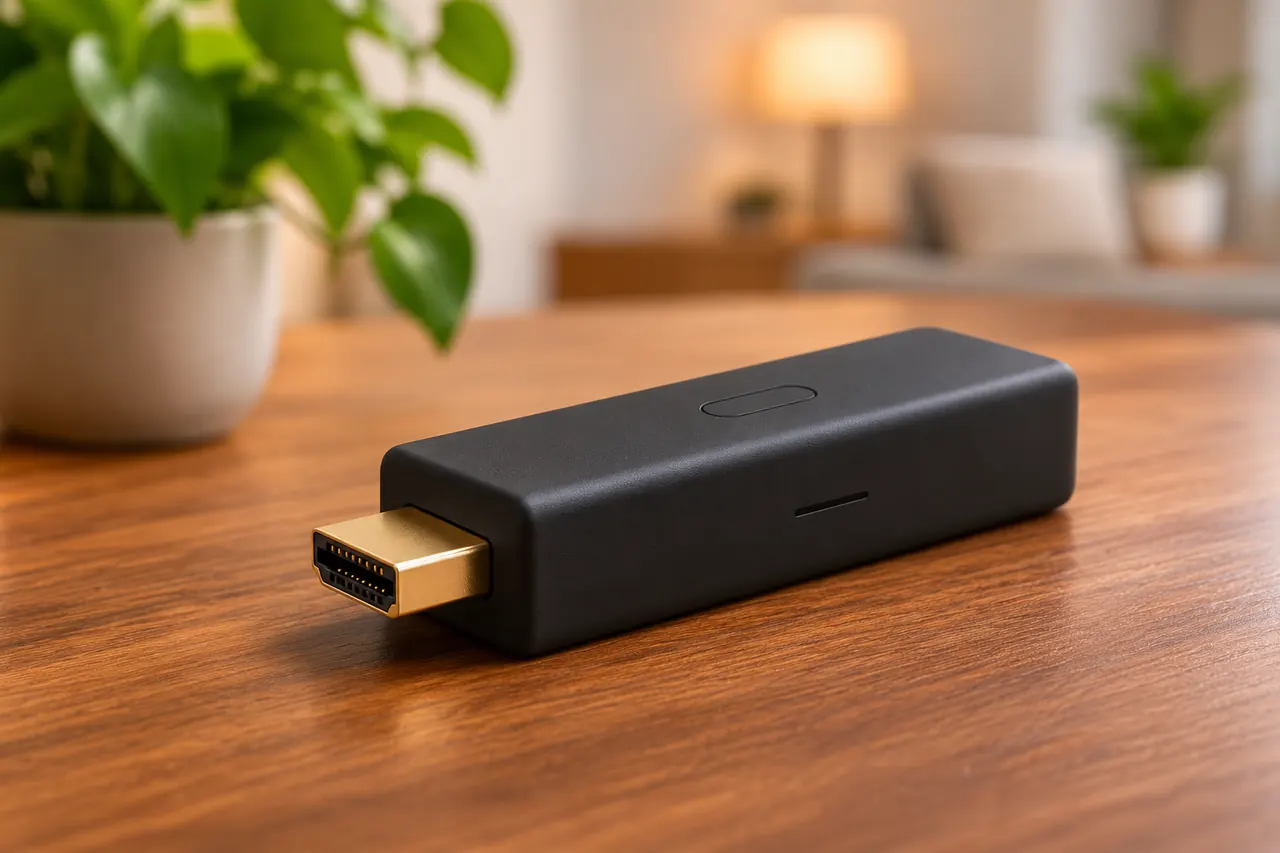
Check the ports on your exact device first. Some streaming sticks need a suitable separate Ethernet adapter, and support must be checked for the specific model. A generic product name is not enough to establish compatibility. Keep cables away from walkways and check both connectors during a test. Compare the same content on the same device so you are not changing several parts of the setup at once.
Check Wi-Fi where the device will actually be used
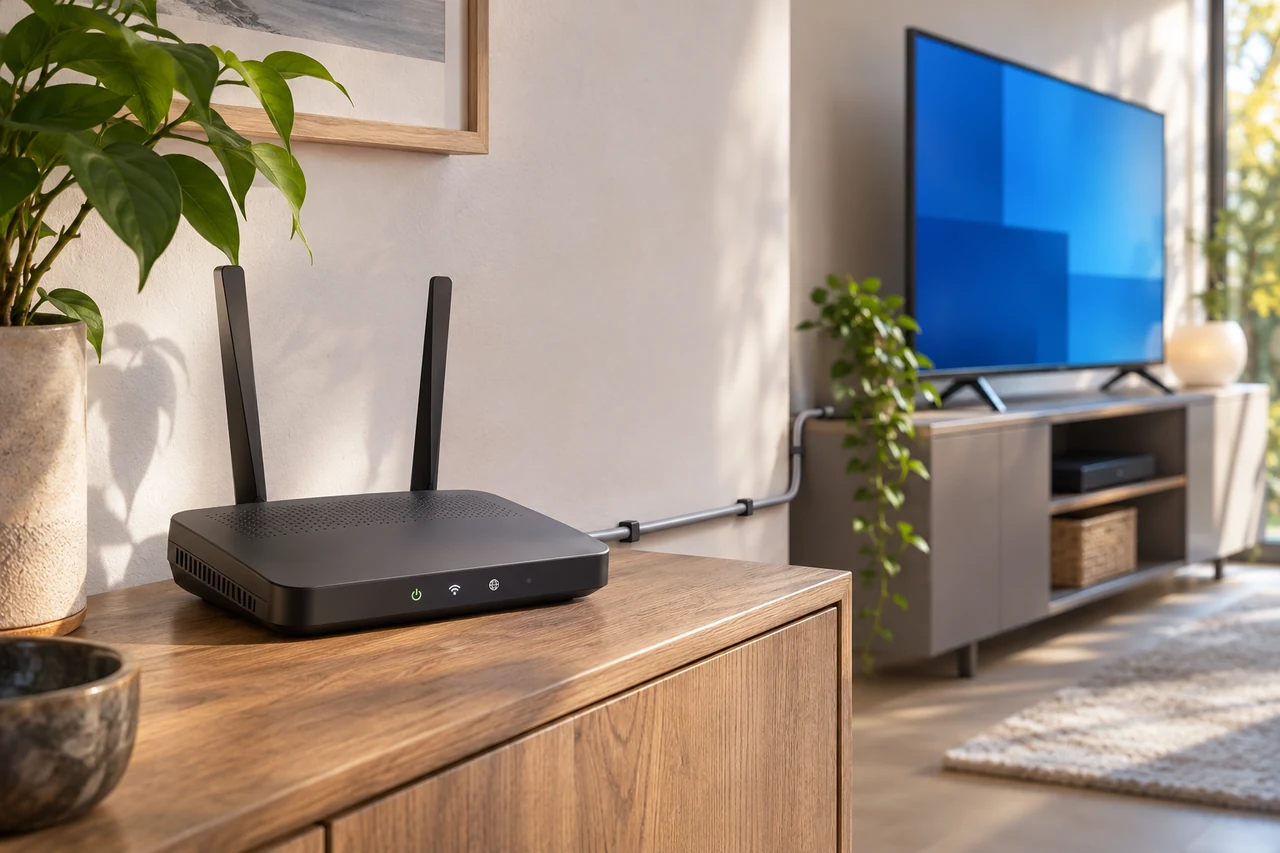
Wi-Fi is convenient when running a cable through the room is impractical. What matters is the connection at the viewing position. Test where the television or stick normally sits, rather than only standing beside the router. If the router is enclosed behind furniture, for example, you can try a more open position and observe whether anything changes.
Make one change at a time, such as position or distance, before comparing the result. If both the router and device support more than one Wi-Fi band, consult their manufacturers’ guidance on suitable use and coverage. A mesh system or repeater should follow a diagnosis, rather than replace it. First establish whether wireless coverage is the likely issue before spending money on extra network equipment.
Prepare the playback device and player
Record the model, operating system and app version. Install available updates from the official sources intended for the device and check that its date and time are correct. Then use instructions for the application you actually installed. A similarly named player can have different menus or require a different method of entering access details.
The device and app overview explains which details help with compatibility checks. The setup overview provides an orderly starting sequence. Never put access passwords into public forum posts or unredacted screenshots. For an initial support question, the model, player name, time of the issue and exact error message are usually more useful. Agree on an appropriate private method if additional account information is subsequently needed.
A practical order for investigating interruptions
Start by narrowing the scope. Is the internet connection working at all? Does the issue affect one piece of content or several? Does it happen on only one device? Stop playback on the first device before testing another, so the comparison does not accidentally exceed the simultaneous connections allowed by your package. A connection test does not override the service conditions.
Next, if possible, test the affected device temporarily over Ethernet or nearer the router. Check whether large transfers are running elsewhere in the household. Change just one setting and record the outcome. Repeated factory resets are a poor first step because they can remove saved app settings without identifying the cause. If you restart equipment, follow its manufacturer’s instructions and allow it to reconnect before testing again.
Collect useful details before contacting support
A specific description is easier to investigate than a report that IPTV does not work. Include the playback device, player, connection type and approximate time. Describe whether the picture freezes, audio continues or an error appears. List the comparisons you have already tried and whether any of them changed the behaviour. This avoids repeating the same test without learning anything.
A faster broadband package or a replacement router should not be assumed to be the answer before there is evidence. Use the contact page to send an organised question. If your issue involves starting playback on another screen, also read the guide to multiple devices and simultaneous connections. Reaching a package limit and losing wireless coverage are different problems and need different checks.
Common questions about Wi-Fi and Ethernet
Is Ethernet mandatory for IPTV? No. Whether Wi-Fi is suitable depends on conditions where the device is used and the service requirements. Ethernet is an alternative and a useful comparison where the equipment supports it.
Should I buy a new router immediately? Check first. Device location, the player and other transfers can also contribute to the behaviour you see.
Can a speed-test result guarantee uninterrupted viewing? No. The connection at the playback device and the requirements of the actual stream also matter.
What should I check before choosing a package? Confirm the device, player and technical requirements, then review the included features on the package page. Prepare the network and choose the service as two connected parts of the same decision.